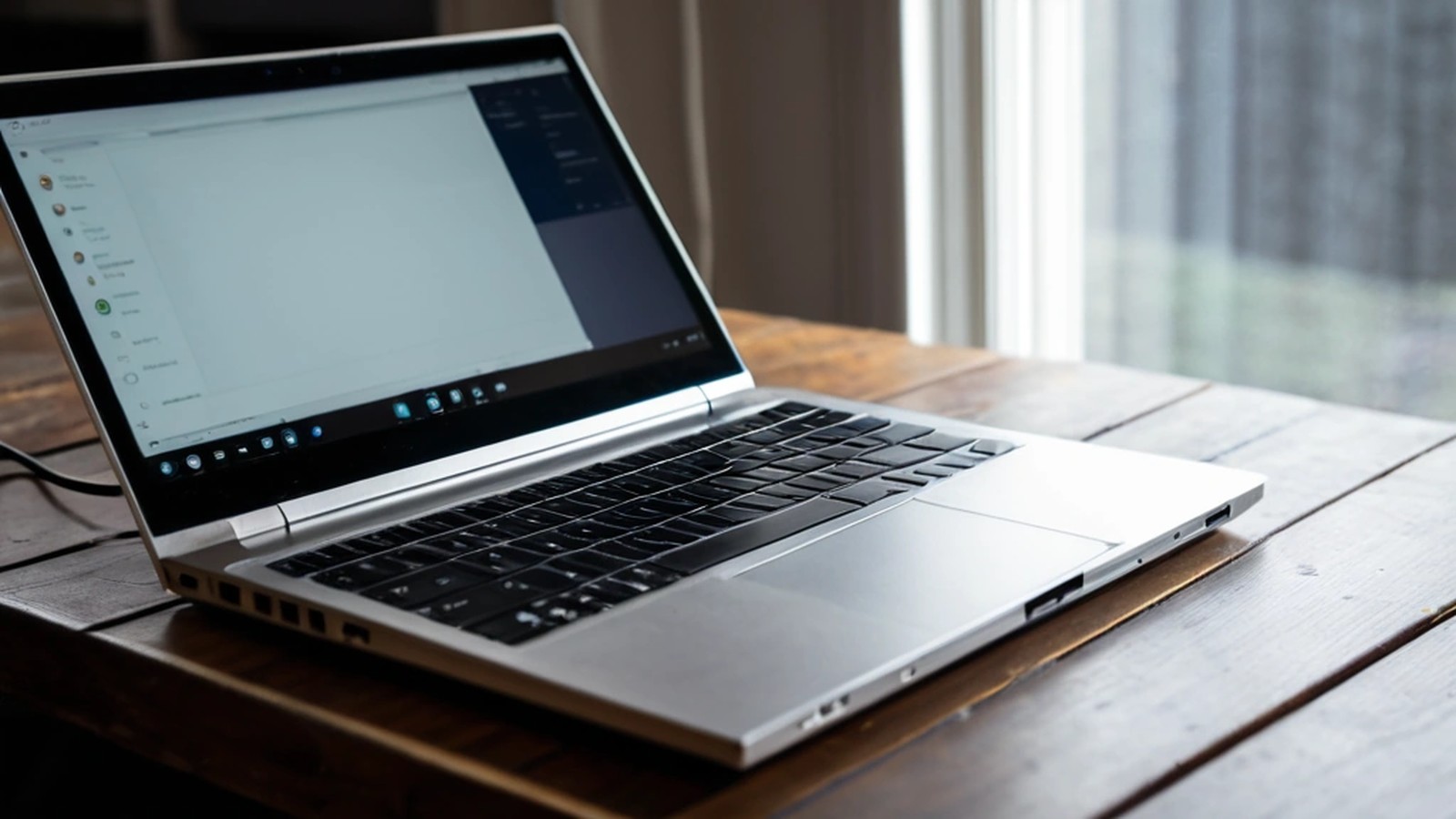
Short answer: If your laptop won’t charge, start with the simple things: try a different wall outlet, check the charger cable and plug for damage, make sure the plug is fully seated in the laptop, and restart the computer. If it charges but drains fast, check your battery health (Windows can create a battery report; Macs show battery health in Settings) and look for apps running in the background. If the battery is bulging, the case is lifting, or the laptop gets unusually hot near the battery, stop using it and unplug it. That is a safety issue, not just an annoyance.
Batteries are one of the most common reasons people in Murrieta and Temecula bring a laptop in for service. The good news is that many charging problems turn out to be a bad cable, a dirty port or a setting, not a dead computer.
Before assuming the laptop is the problem, test the easy parts:
If you have a USB-C laptop, the charger matters. A phone charger or a low-wattage USB-C charger may keep the laptop alive but charge it very slowly, or not at all while you’re using it. Use the charger that came with the laptop or one rated for at least the same wattage.
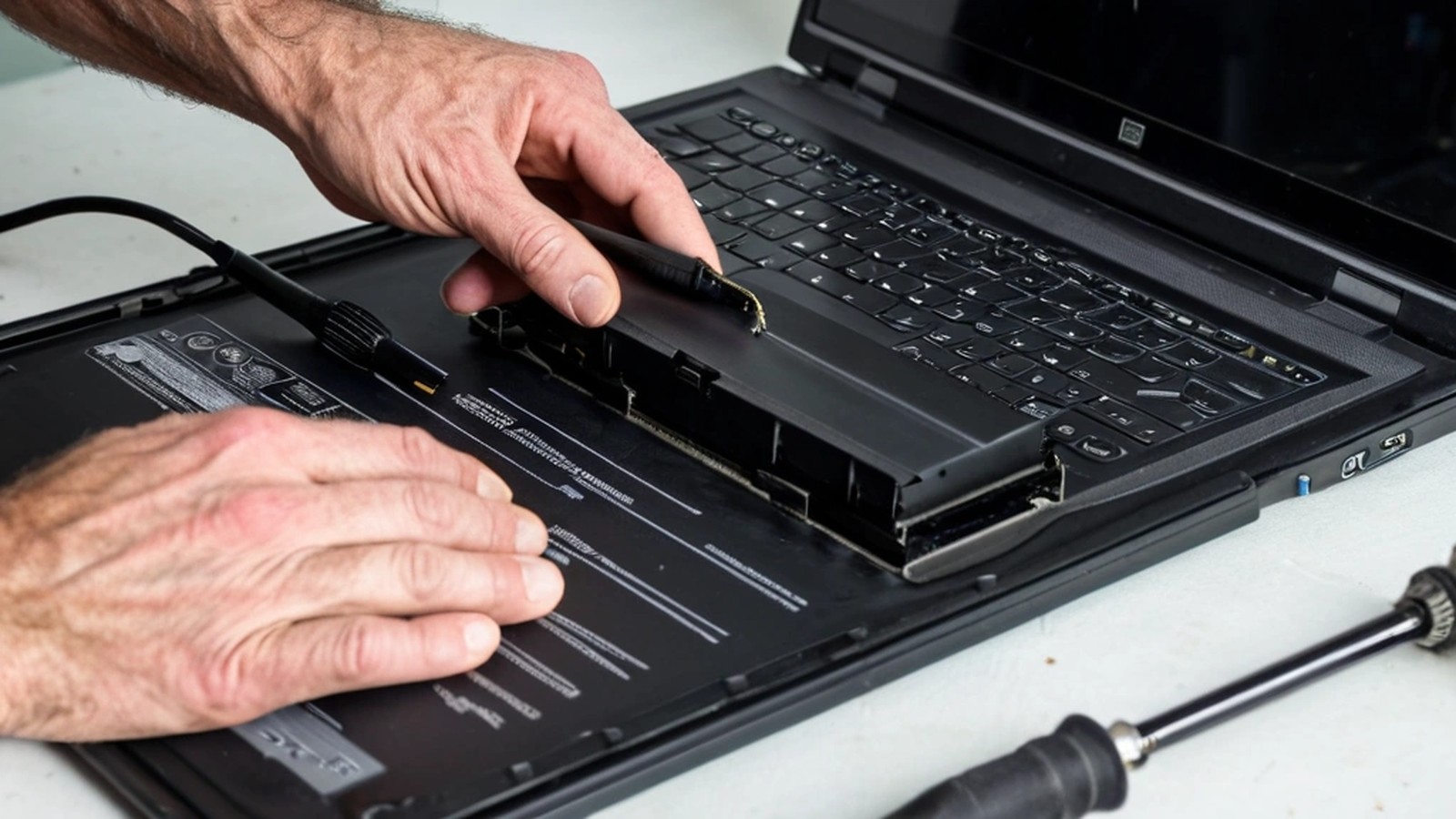
The port on the laptop takes a lot of wear. Shine a flashlight inside and look for lint, dust or debris. A loose connection, a plug that only charges at a certain angle, or a port that wiggles are signs the port or the board connector may need repair.
Don’t use metal objects to clean a port. A gentle puff of compressed air, with the laptop off and unplugged, is safer.
Sometimes the battery is fine but the computer isn’t reading it correctly.
Some laptops also have a battery-saving setting that stops charging at around 80 percent to extend battery life. If your laptop always stops at the same level, look for a setting like that in the manufacturer’s app or your power settings before assuming something is broken.
All laptop batteries wear out over time. After a few years of daily use, it’s normal for a battery to hold noticeably less charge than it did when new.
On Windows: Open Command Prompt and type powercfg /batteryreport, then press Enter. Windows saves a battery report file and shows you where. Open it and compare the design capacity to the full charge capacity. If the full charge capacity is much lower than the design capacity, the battery has worn down.
On a Mac: Open System Settings, then Battery, and look at battery health. A message such as “Service Recommended” means the battery isn’t holding charge like it should.
If the battery is healthy but still drains quickly, something is probably working the computer hard:

Lithium-ion batteries can swell as they age or if they’re damaged. Signs include:
If you notice any of these, shut the laptop down, unplug it and don’t charge it again. Keep it away from anything flammable and don’t press on, puncture or try to remove a swollen battery yourself. Have it looked at by a professional and replaced safely.
A new battery or charging port is often a reasonable repair, especially on a laptop that’s otherwise fast enough for what you do. If the laptop is very old, slow, or no longer gets security updates, it may make more sense to put that money toward a new machine. Our repair or replace guide walks through how to decide.
Why does my laptop say “plugged in, not charging”? It can mean the charger isn’t providing enough power, the battery or charging circuit has a problem, or a battery-care setting is pausing the charge. Try another outlet and the original charger first, then check your battery settings.
Is it bad to leave my laptop plugged in all the time? Many modern laptops manage this well, and some include settings that limit charging to protect the battery. Check your manufacturer’s battery settings.
How long should a laptop battery last? It depends on the model and how you use it. All batteries lose capacity with age and charge cycles, so it’s normal to see shorter battery life after a few years.
Can I use any USB-C charger? It needs to support your laptop’s power requirements. A lower-wattage charger may charge very slowly or not at all while the laptop is in use.
A. Computer Doctor has helped homes and businesses in Murrieta, Temecula and surrounding cities since 2006. It was founded by Cesar Ramirez, a computer engineer with a B.S. from Cal Poly San Luis Obispo. If your laptop won’t charge, dies too fast or you think the battery may be swelling, we’ll test the charger, port and battery and give you honest options. Learn more about our computer and laptop repair services.
Call 951-595-7758, email [email protected], or submit a trouble ticket to get started.