Cracked or Flickering Laptop Screen? Repair Options and What to Do First (Murrieta and Temecula Guide)

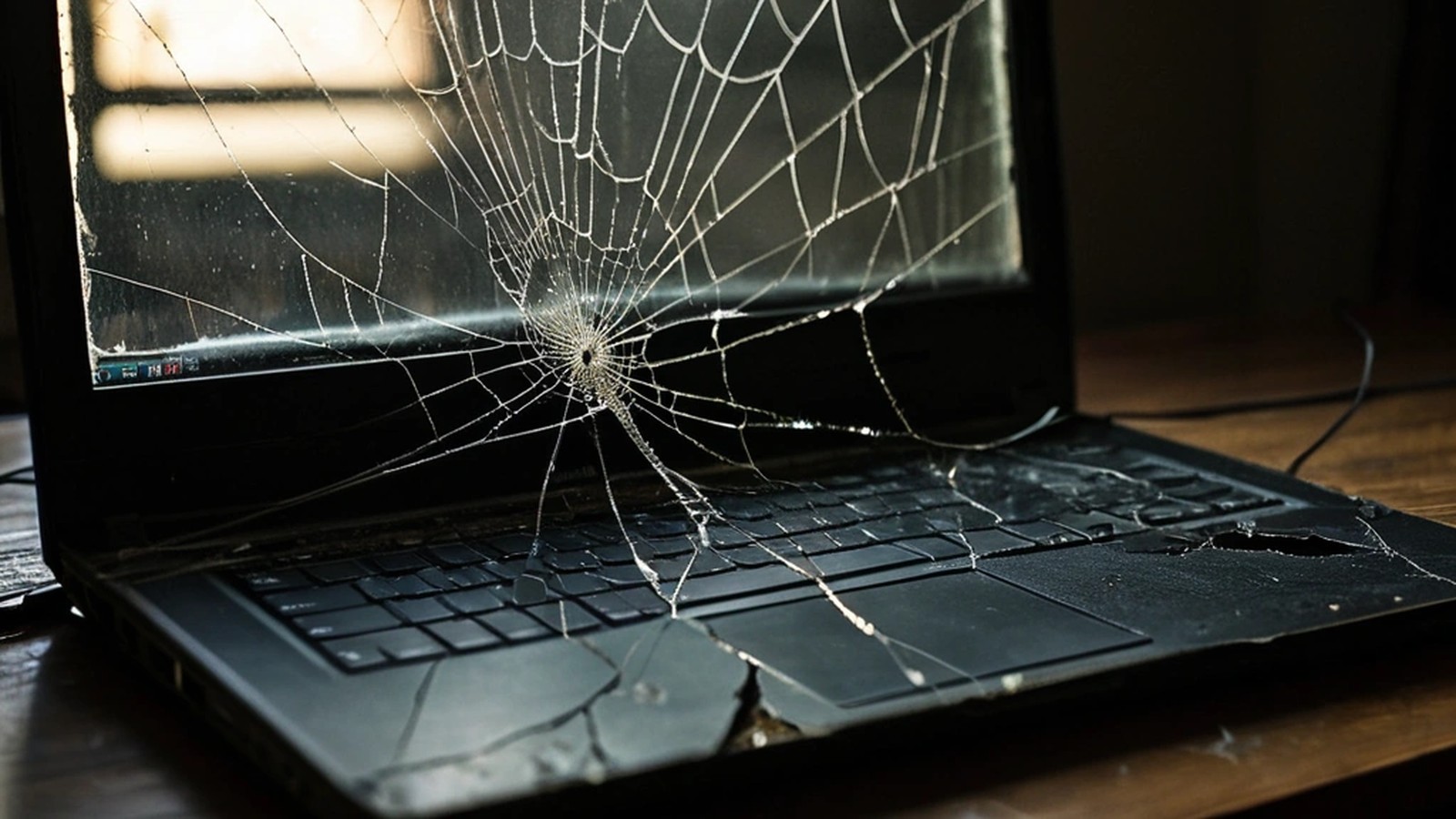
Laptop with a cracked, shattered screen sitting on a wooden desk

Cracked or Flickering Laptop Screen? Repair Options and What to Do First (Murrieta and Temecula Guide)

Short answer: Plug your laptop into an external monitor or TV. If the picture looks normal there, the laptop’s own screen, its cable or its hinge area is the problem, and a screen replacement usually fixes it. If the external monitor is also blank or glitchy, the issue is more likely the graphics hardware, the motherboard or software. Back up your files as soon as you can, stop pressing on cracked glass, and get a quote before buying a new laptop. Many screens can be replaced for far less than the cost of a new computer.

A dropped laptop, a pen left on the keyboard when you closed the lid, or a slow-growing flicker: screen problems are some of the most common laptop repairs we see from homes, students and small offices around Murrieta and Temecula. Here’s how to figure out what’s wrong and what your options are.

Step 1: Identify what kind of screen problem you have

Different symptoms point to different causes:
  • Cracked glass or spiderweb lines: physical damage to the display panel. The panel needs to be replaced.
  • Black or dark ink-like blotches that spread: the LCD layer is damaged, often from pressure or a drop, even if the glass looks fine.
  • Vertical or horizontal colored lines: could be a damaged panel or a loose or worn display cable.
  • Flickering that changes when you move the lid: classic sign of a display cable that’s worn out where it passes through the hinge.
  • Very dim screen you can barely see: often a failed backlight. Shine a flashlight at the screen. If you can faintly see the desktop, the backlight or its circuit is the problem.
  • Completely black, but the laptop seems on (lights, fan, startup sound): could be the screen, the cable, the graphics chip or a software issue.
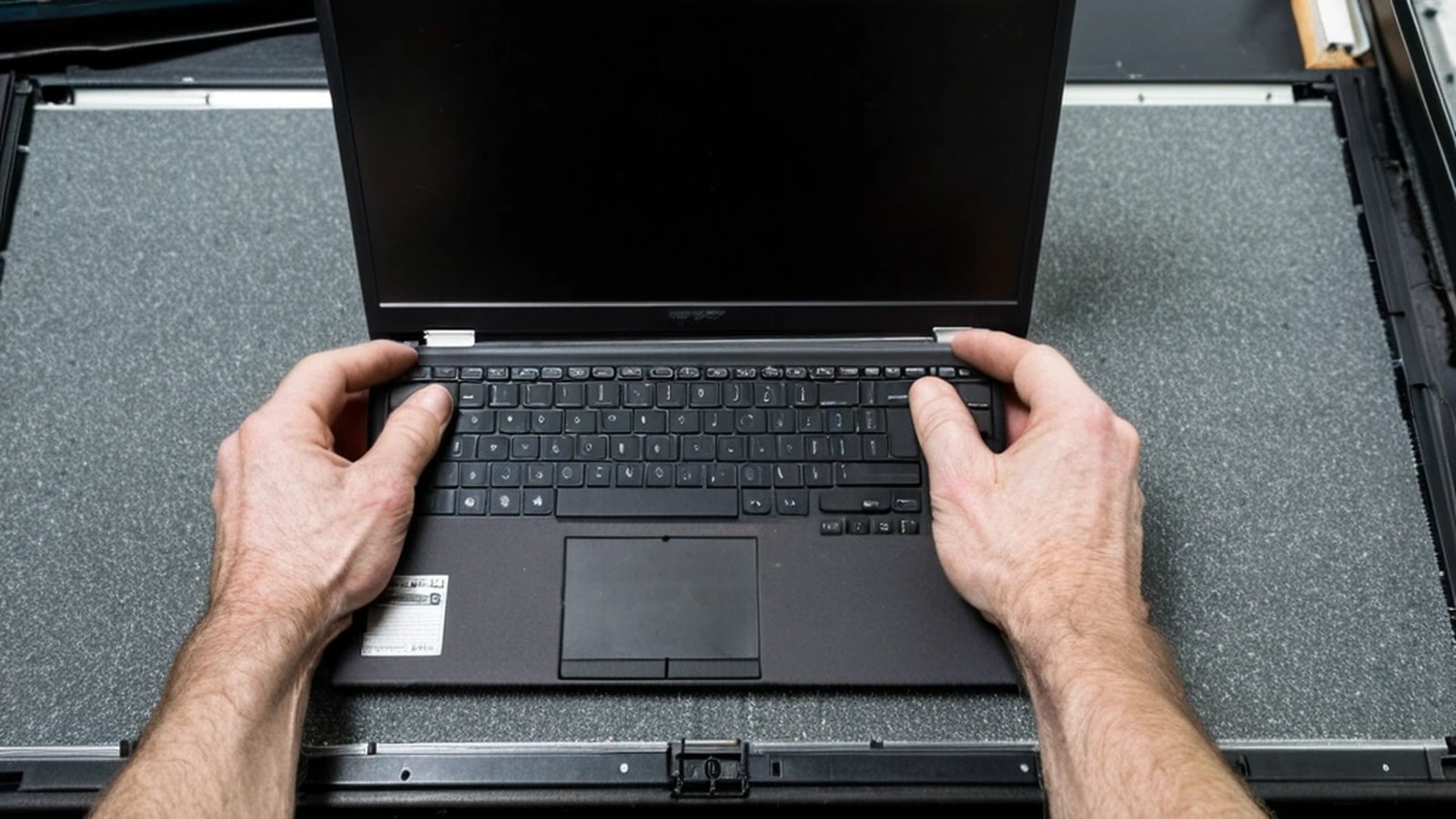
Technician checking a laptop with a blank screen on a gray repair bench mat

Step 2: Test with an external monitor

This is the single most useful test you can do at home.

  1. Connect the laptop to a TV or monitor with HDMI, USB-C or DisplayPort, depending on your ports.
  2. On Windows, press Windows + P and choose Duplicate or Second screen only. On a Mac, the external display usually turns on automatically. Check System Settings > Displays if not.
  3. Look at the result:
  4. External screen looks perfect: your laptop’s screen, cable or hinge is the likely culprit. Good news, because that’s a straightforward repair on most models.
  5. External screen also has lines, artifacts or nothing at all: the problem is deeper, often graphics hardware or the motherboard, and needs a proper diagnosis.

Step 3: Rule out software (for flicker and lines)

If the screen isn’t physically cracked, try these before assuming it’s hardware:

  • Restart the laptop. It sounds simple, but it clears a lot of display glitches.
  • Update your display drivers through Windows Update or the laptop maker’s support app.
  • Check the startup screen. If the manufacturer’s logo (before Windows or macOS loads) also shows lines or flicker, it’s hardware. If the logo looks clean and problems start only after you log in, software is a stronger suspect.
  • Adjust the refresh rate under Settings > System > Display > Advanced display on Windows. A mismatched setting can cause flicker on some models.

What to do right away if the screen is cracked

  • Back up your files. Use an external monitor to see what you’re doing and copy important files to a drive or cloud storage. Our guide to backing up your computer walks through the options.
  • Don’t press on the cracks. Pressure spreads the damage and broken glass can cut fingers.
  • Close the lid gently, and don’t carry the laptop loose in a bag where the screen can flex.
  • Avoid tape over the whole screen. It can leave residue and make the repair messier.
  • Use it as a desktop for now. Plugged into a monitor, keyboard and mouse, a cracked laptop can keep you working until it’s repaired.
Woman working at a home desk with an external monitor and keyboard

Repair or replace?

A screen replacement is usually worth it when:

  • The laptop is only a few years old and otherwise works well.
  • The external monitor test showed a normal picture.
  • It has a solid-state drive and enough memory for what you do.

Replacing the laptop may make more sense if the machine is very old, slow even before the damage, can’t run a supported version of Windows, or has other problems such as liquid damage or a failing motherboard. Touchscreens and some ultra-thin or 2-in-1 models have the glass bonded to the display, which can make parts more expensive. We cover the bigger picture in our repair or replace guide.

Why we don’t recommend DIY on most modern laptops

Online videos make screen swaps look easy, and on some older models they are. On many newer thin laptops, though, the screen is glued in, the cable connectors are tiny and fragile, and the correct replacement panel depends on the exact model and part number. Ordering the wrong panel, tearing a cable or cracking the new screen during install is common. If you do try it yourself, power down, disconnect the charger and, where possible, disconnect the battery first.

Frequently asked questions

How long does a laptop screen replacement take? It depends on whether the right panel is in stock. Once the part is available, the replacement itself is usually quick. We’ll give you a realistic timeline when we check your model.

Will I lose my files if my screen is broken? Usually not. A broken screen doesn’t erase your storage drive. Still, back up as soon as you can, especially if the laptop was dropped hard.

Can you fix a laptop screen with lines but no cracks? Often, yes. Lines can come from the panel or the display cable, and both can be replaced once we confirm which one is at fault.

Is a flickering screen dangerous? Not usually, but it tends to get worse. A worn cable can fail completely, so it’s best to get it checked early.

Broken laptop screen in Murrieta or Temecula?

A. Computer Doctor has helped homes and businesses in Murrieta, Temecula and surrounding cities since 2006. It was founded by Cesar Ramirez, a computer engineer with a B.S. from Cal Poly San Luis Obispo. We can test your laptop, confirm whether it’s the screen, cable or something deeper, and give you an honest recommendation on repairing or replacing. Learn more about our computer and laptop repair services.

Call 951-595-7758, email [email protected], or submit a trouble ticket to get started.