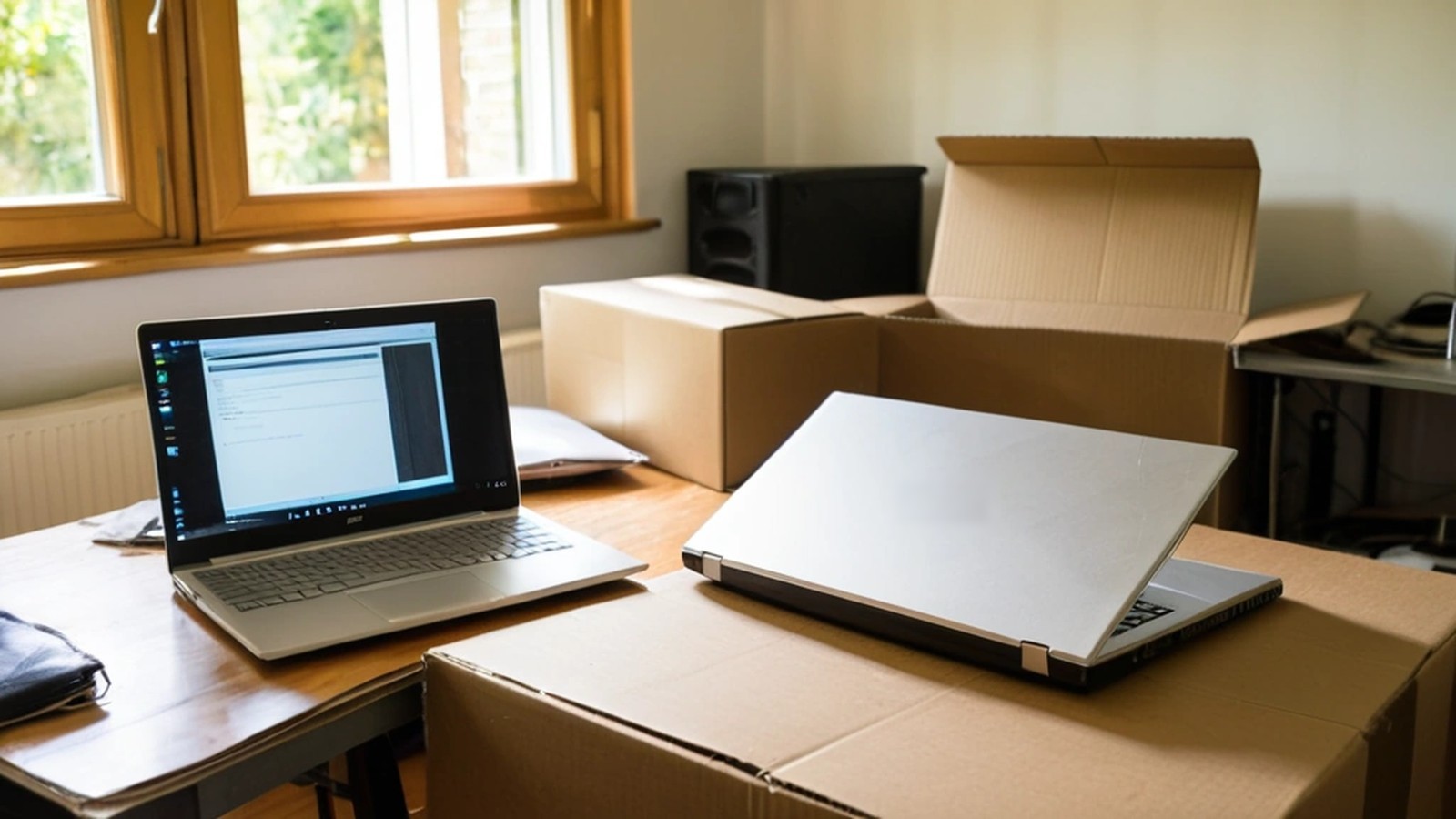
Short answer: Before you touch the new computer, back up the old one. Then make a list of what you need to bring over: documents, photos, browser bookmarks and passwords, email, and the programs you use (with their license keys). Set up the new computer with updates and security first, move your files with a cloud account, an external drive or a transfer tool, and check that everything opened correctly. Keep the old computer untouched for a couple of weeks, and only then wipe it before you sell, donate or recycle it.
A new laptop or desktop is exciting, especially this time of year. The part most people dread is getting their “stuff” off the old machine. Here’s a calm, step-by-step way to do it without losing anything important.
Moving files is the moment things go wrong: a drive fails, a folder gets skipped, or someone wipes the old computer too early. A full backup before you start means nothing is lost if that happens. If you don’t have one, follow our guide on how to back up your computer before going further.
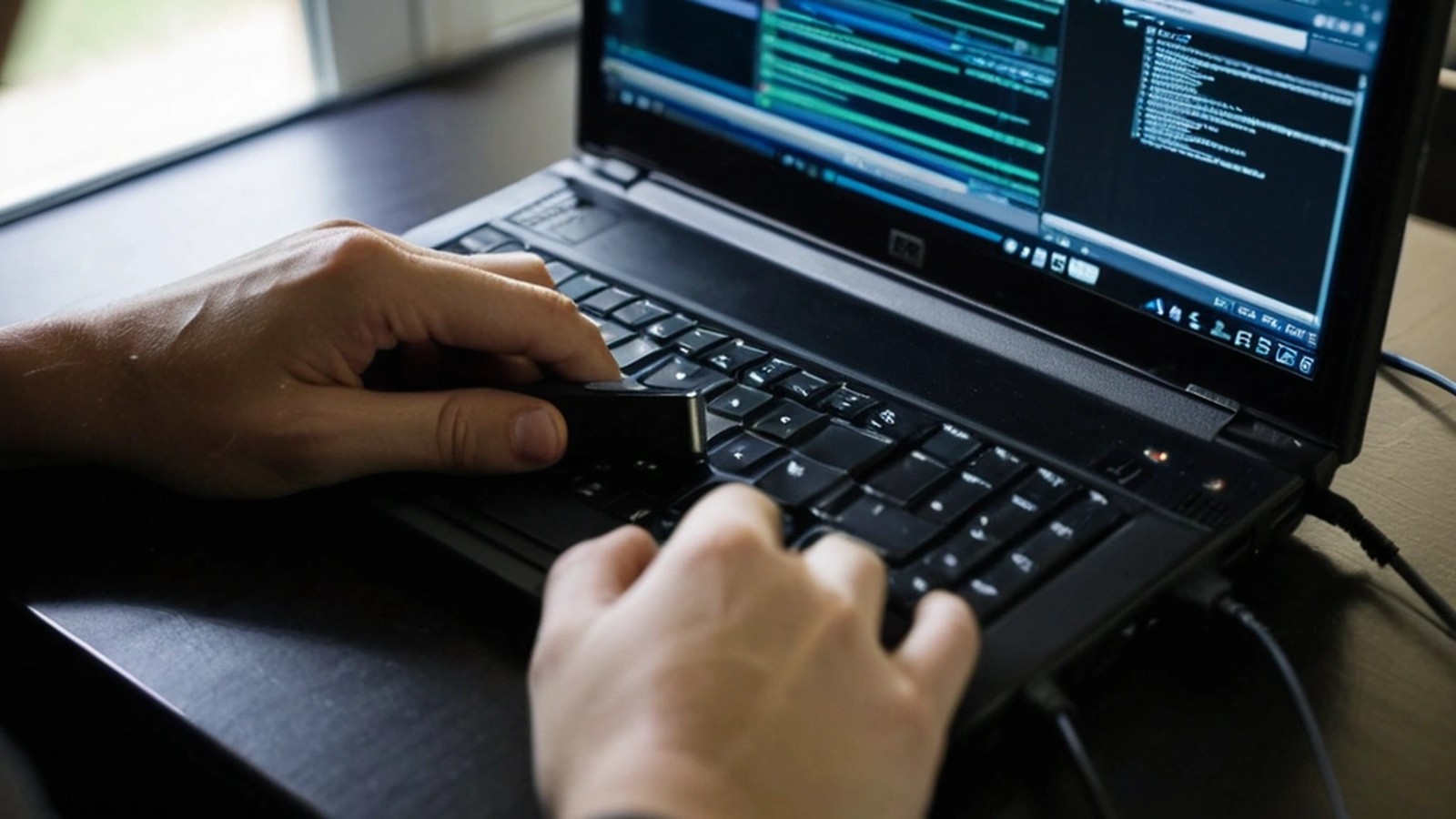
Walk through the old computer and write down:
When you first turn it on:
There’s no single right way. Pick the option that fits how much data you have and how comfortable you are.
| Method | Good for | Watch out for |
|---|---|---|
| Cloud account (OneDrive, iCloud, Google Drive) | Documents and photos you already sync | Storage limits and long upload times on big photo libraries |
| External drive | Large amounts of data, slow internet | Copy, don’t move, so the originals stay on the old computer |
| Built-in tools (Apple Migration Assistant, Windows Backup) | Moving within the same family of devices | Make sure both computers are fully updated first |
| Professional transfer | Lots of programs, old systems, business files | Choose someone local you trust with your data |
Whichever you choose, copy rather than move, so the old computer still has everything until you’ve confirmed the new one does too.
Open a handful of documents, scroll through your photo library, log in to your banking and email in the new browser, and print a test page. Make sure your programs open and are activated. If something is missing, the old computer is still there to go back to.
Give it at least a week or two of normal use. It’s common to remember a forgotten folder or program after a few days.
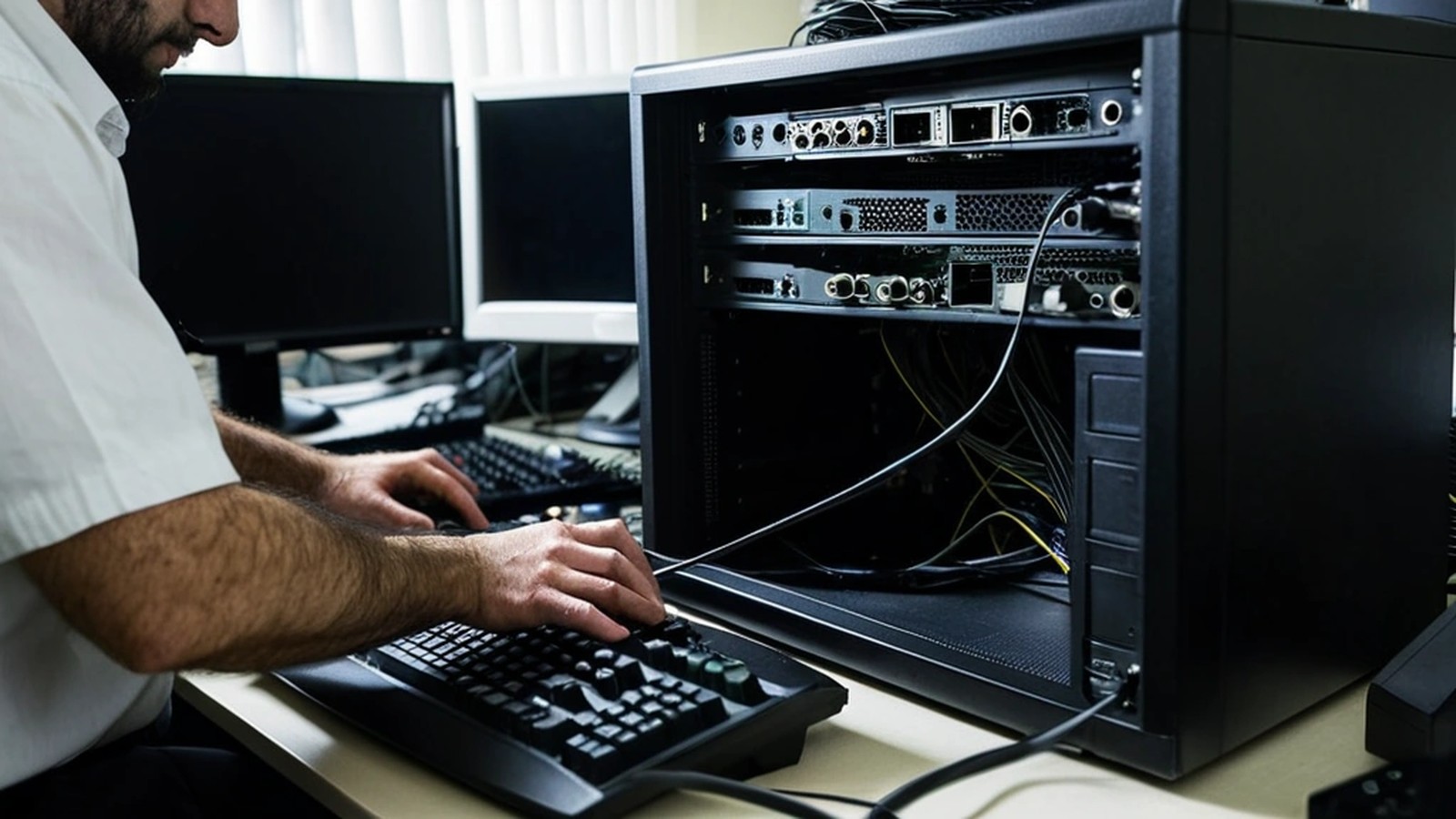
Don’t just delete files and hand it off. Deleted files can often be recovered.
For offices, replacing computers isn’t just about files. Shared drives, printers, line-of-business software and user accounts all need to come along, and security settings should be consistent from day one. Planning upgrades together saves downtime and missed details.
How long does it take to transfer files to a new computer? It depends on how much data you have and the method. A few folders can take minutes. Large photo and video libraries can take hours, especially over the internet.
Can I transfer from a Windows PC to a Mac, or the other way? Yes. Your documents and photos move fine. Programs usually need to be reinstalled in a version made for the new system, and some Windows-only programs won’t run on a Mac.
Should I keep my old computer as a backup? Keeping it for a few weeks is smart. Long term, a real backup on an external drive or cloud service is more reliable than an aging computer.
Is it safe to sell my old laptop? Yes, as long as you sign out of your accounts and fully reset it first. If it held sensitive data, consider removing the drive.
A. Computer Doctor has been helping homes and businesses in Murrieta, Temecula and surrounding cities since 2006. It was founded by Cesar Ramirez, a computer engineer with a B.S. from Cal Poly San Luis Obispo. We can set up your new computer, move your files and programs, and securely wipe the old one so you can start fresh with confidence.
Call 951-595-7758, email [email protected], or submit a trouble ticket to get started.