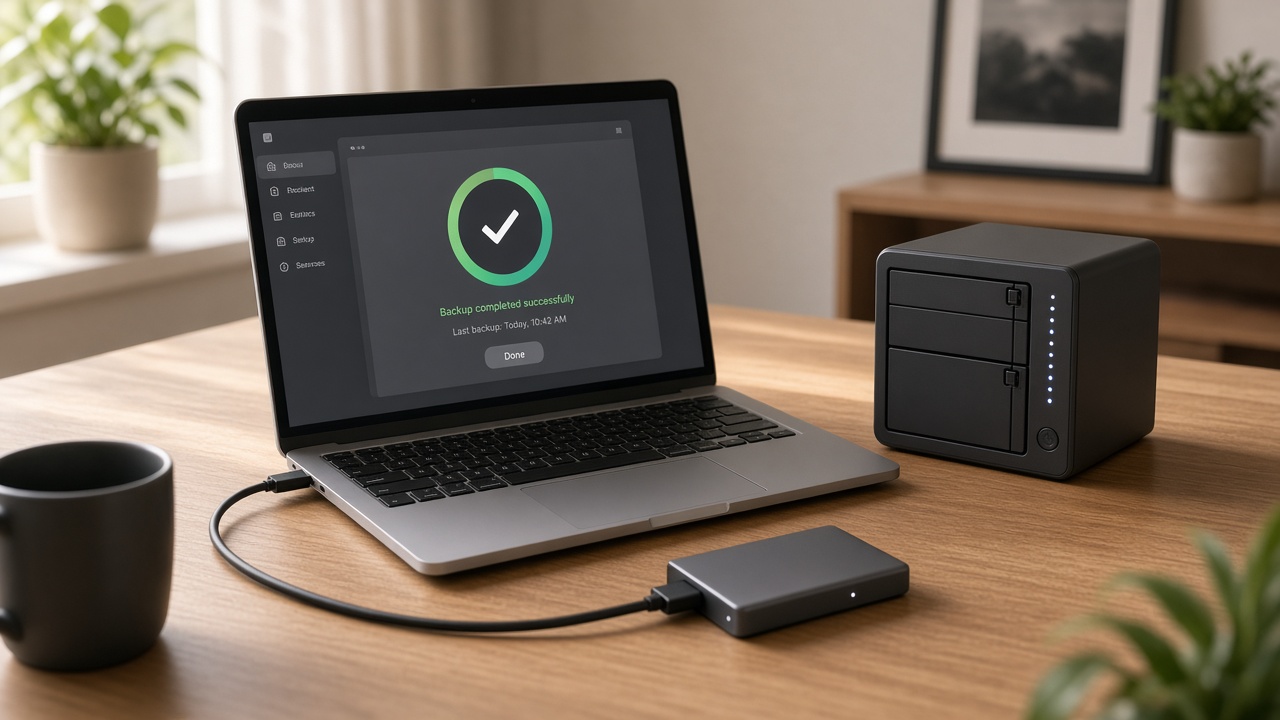
Most people think about backups the day after they needed one. A hard drive stops spinning, a laptop gets knocked off the kitchen counter, or a ransomware message locks up the front-desk PC, and suddenly years of family photos, tax records or client files are at risk.
The good news: a solid backup plan is simple and inexpensive. Here’s how to set one up for your home or small office in Murrieta, Temecula and the surrounding area.
A backup is a separate copy of your files that you can restore if the original is lost, damaged, deleted or locked. The key word is separate. A second folder on the same drive isn’t a backup. If that drive fails, both copies go with it.
IT professionals use a simple guideline called the 3-2-1 rule:
Why offsite? Because some disasters, like fire, theft or a power surge, can take out everything in one building at once. An offsite copy means you can still recover.
Start with what you can’t replace:
Programs can usually be reinstalled. Your files can’t.
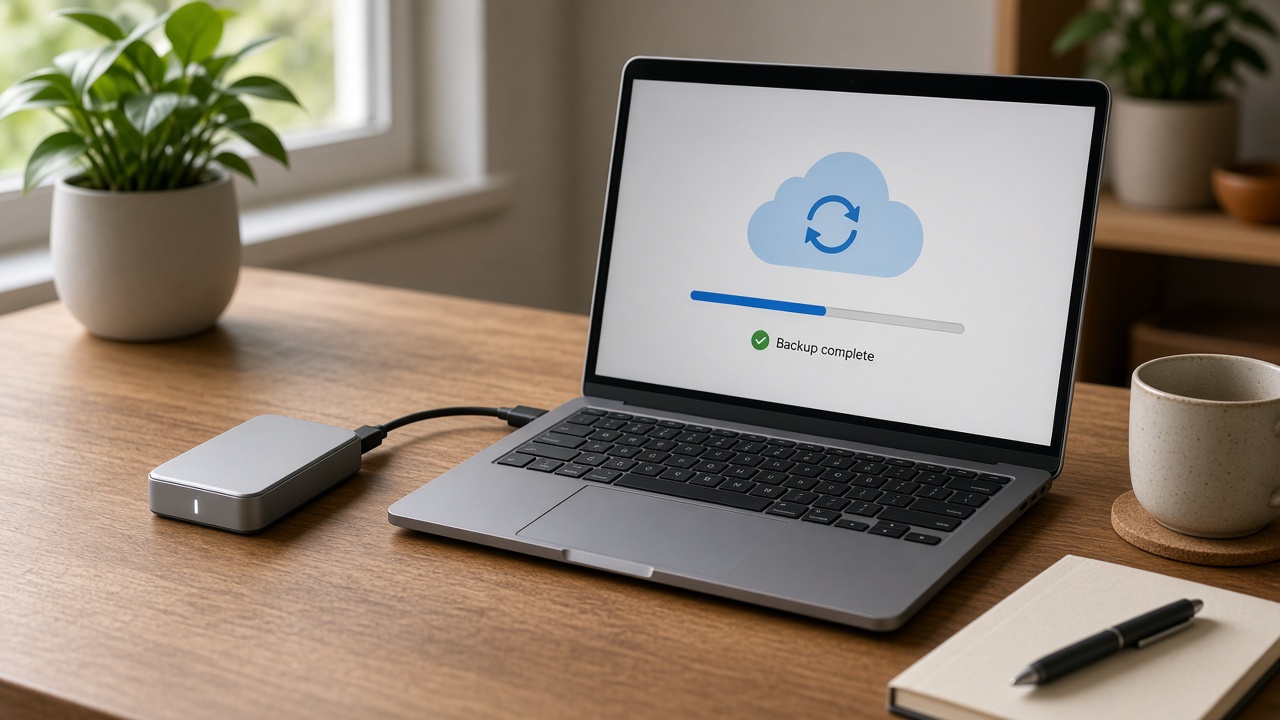
A local backup is fast to restore and doesn’t depend on your internet connection.
On Windows: Windows includes built-in backup tools. File History can automatically copy your personal folders to an external drive, and Windows 11 also includes the Windows Backup app for backing up folders, settings and apps to your Microsoft account. Look for “Backup” in your Settings.
On a Mac: Time Machine is built into macOS. Plug in an external drive, choose it in Time Machine settings, and it will back up automatically while connected.
Tips:
This is your “1 copy offsite.” Options include:
Important: cloud sync is not the same as cloud backup. Sync services mirror what’s on your computer, so if a file is deleted or encrypted by ransomware, that change can sync too. Many sync services offer version history or a recycle bin that can help, but check how long they keep deleted or older versions before relying on sync alone.
A backup you’ve never tested is a guess. Every few months:
For businesses, it’s worth doing a bigger test once in a while: can you get a key computer back up and running from backup, and how long does it take?
If you run a business, a lost computer can mean lost billing, lost customer records and downtime you can’t afford. Business backups should also cover:
Medical and dental practices have extra responsibility to protect patient data and keep systems available. If your practice also manages medical images, the PACS and imaging side has its own backup and recovery needs. Cesar also runs Sacred Heart Imaging Solutions, which focuses on medical imaging technology.
Data Backup & Disaster Recovery is part of the Managed IT services we offer, along with 24/7 system monitoring and alerts, proactive maintenance and patch management, so problems are caught early instead of after something breaks.
Back up immediately and have your computer checked if you notice:
If a drive has already failed, stop using it and don’t keep restarting it. Repeated attempts can make recovery harder. We offer Data Recovery Services and can tell you what’s possible.
“I have used Cesar’s services and his prices are very reasonable and he responds to requests in a timely manner.” — Bob Coleman, client (as shown on CesarRamirez.com)
You can also read our reviews on Yelp.
How often should I back up my computer? Back up as often as you’d be upset to lose your work. For most homes, automatic daily or weekly backups work well. Businesses usually need daily backups or more.
Is an external hard drive enough? It’s a great start, but it’s only one copy in one place. Add an offsite or cloud copy to follow the 3-2-1 rule.
Is OneDrive or iCloud a backup? They’re helpful, but they’re mainly sync services. Use them as part of your plan, not your only protection.
Can you recover files from a dead hard drive? Sometimes. It depends on the type of failure. Stop using the drive and contact us so we can take a look.
Can you set up backups for my whole office? Yes. We can set up, monitor and test backups for your computers and servers as part of managed IT support.
Since 2006, A. Computer Doctor has helped homes and businesses in Murrieta, Temecula and surrounding cities keep their technology running and their data safe. Not sure if your backups are working, or don’t have any yet? We’ll check your setup and build a plan that fits.
Call 951-595-7758, contact us, or submit a trouble ticket today.