“I think my computer has a virus” is one of the most common calls any repair shop gets. Sometimes it’s malware. Sometimes it’s an old hard drive, a full disk or a browser setting gone wrong. Knowing the difference saves you time, money and stress.
Here are the signs worth paying attention to, the steps to take right away, and when it’s time to bring in a professional.
Ads appearing on your desktop, outside your browser, or every time you open a page are a classic sign of adware.
A flashing alert that tells you to call a phone number or pay to fix your PC is almost always a scam. Real antivirus software doesn’t ask you to call a stranger.
A new homepage, an unfamiliar search engine or toolbars you never installed usually point to a browser hijacker.
If a computer that ran fine last week is suddenly crawling, malware running in the background is one possible cause. (Aging hardware and full drives are others; see our guide on slow computers.)
New apps in your Start menu or system tray, especially “PC cleaners” or “optimizers” you never chose, deserve a closer look.
If contacts receive links or requests you didn’t send, your email or social account may be compromised, sometimes through malware that captured your password.
Some malware disables Windows Security or your antivirus so it can work undisturbed. If your protection keeps switching off, take it seriously.
Files renamed with odd extensions or a message demanding payment means ransomware. Stop using the computer and get help right away.
A computer that’s busy when you’re doing nothing may be running hidden processes.
Alerts about sign-ins you didn’t make suggest someone has your credentials.
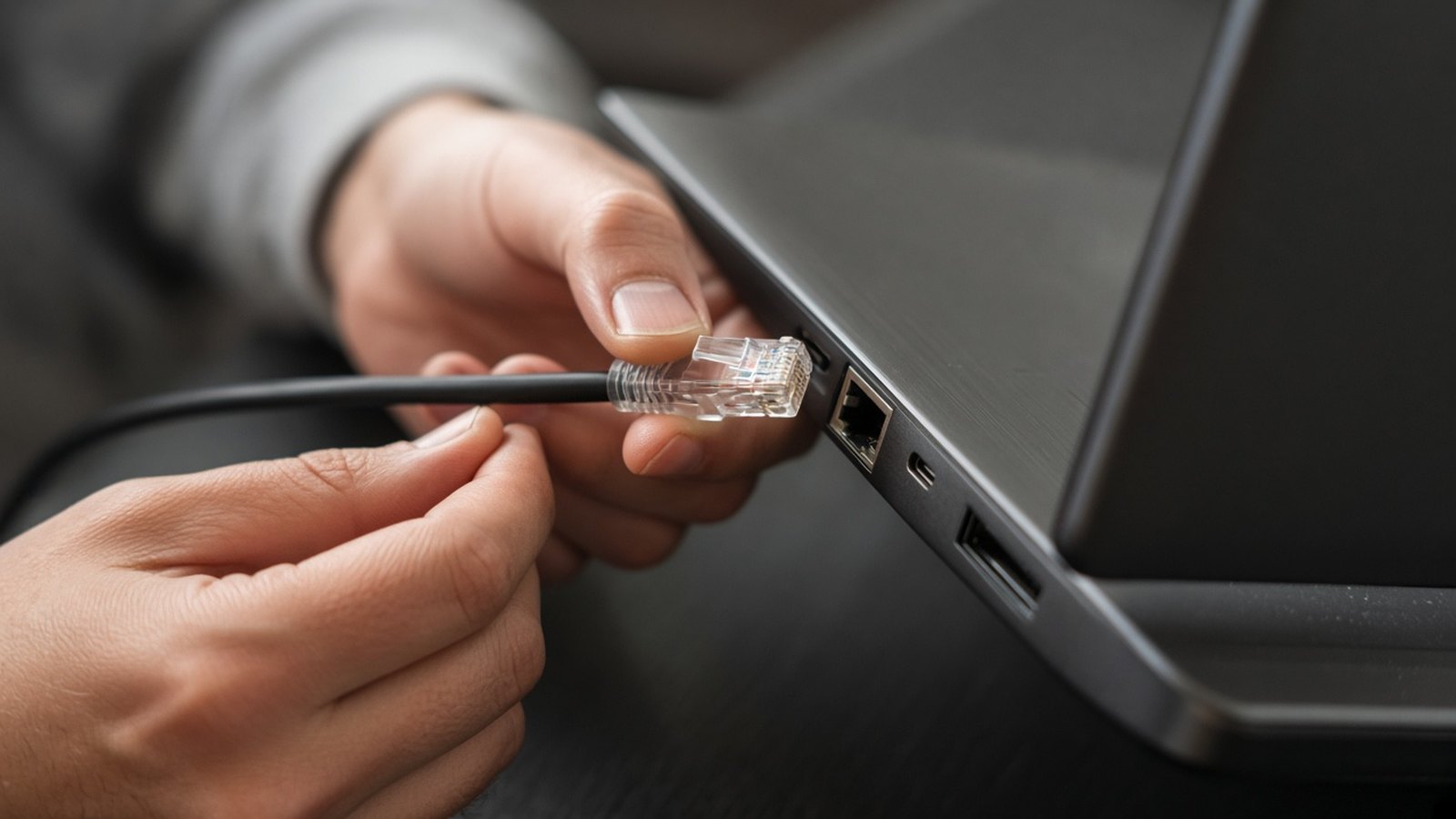
Not every problem is malware. Before assuming the worst, consider:
A professional diagnosis tells you which one you’re dealing with, so you don’t pay for the wrong fix.
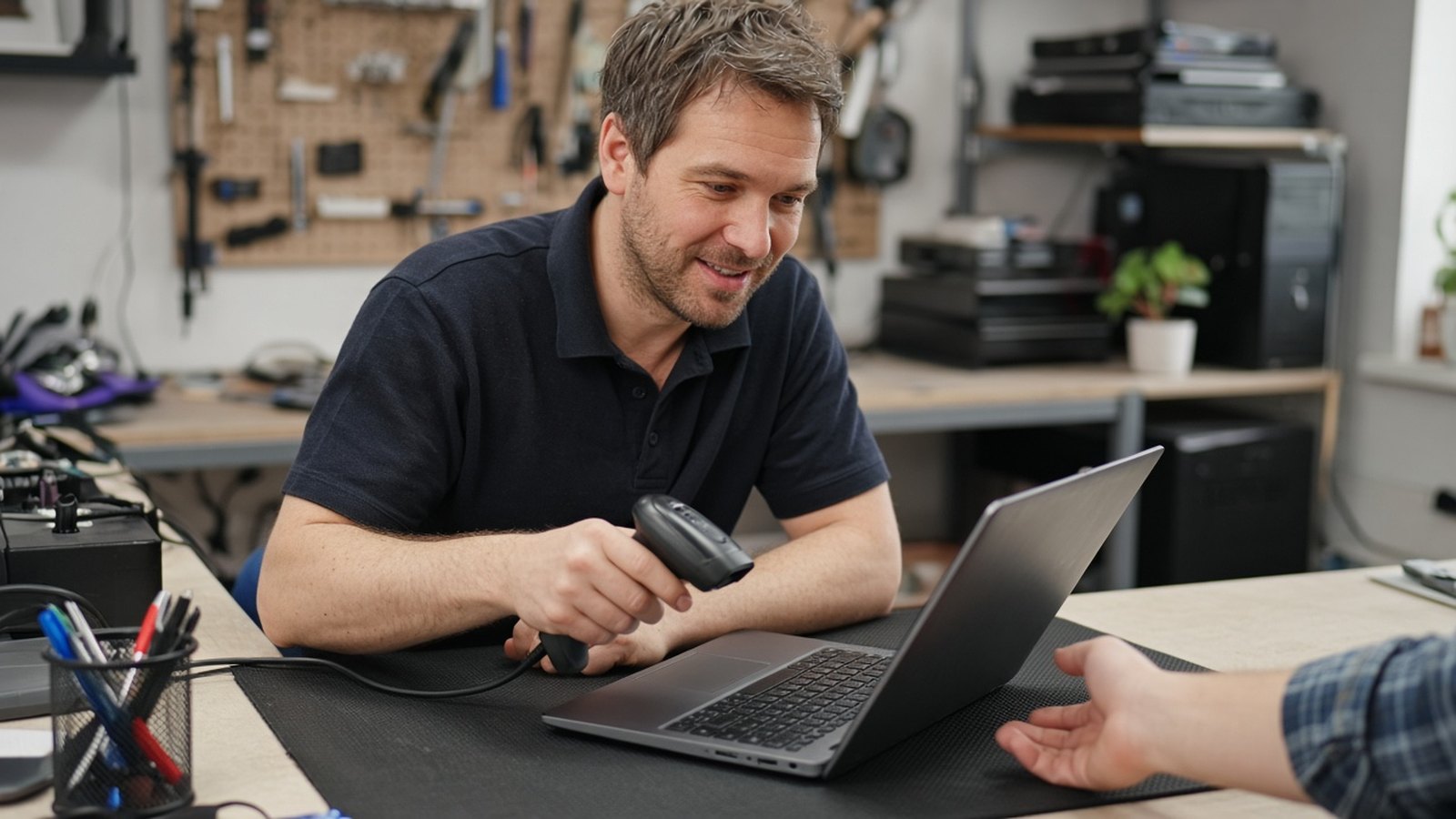
In an office, malware rarely stays on one machine. A single clicked link can spread across a shared network, lock shared files or expose customer data. That’s why A. Computer Doctor’s managed IT services include proactive monitoring, patch management, endpoint protection, backup and disaster recovery, and employee security awareness training. Medical offices in particular need protection that keeps patient data safe; we support local practices with medical IT services built for that environment.
Can I remove a virus myself? Sometimes. A full scan with Windows Security catches many common threats. Stubborn infections, ransomware and anything touching business or financial data are best handled by a professional.
Will removing malware delete my files? Proper malware removal aims to keep your personal files. Backing up first and having a technician handle the cleanup lowers the risk.
Do Macs get viruses? Yes. Macs are targeted less often than Windows PCs, but adware, scams and malicious downloads affect them too.
Is that pop-up from Microsoft real? Microsoft doesn’t display pop-ups asking you to call a support number. Treat those as scams.
Do you offer remote help? Yes. Many issues can be handled through remote support, and on-site help is available for Murrieta, Temecula and surrounding cities.
A. Computer Doctor has provided computer repair and IT support since 2006, founded by Cesar Ramirez, Computer Engineer (B.S., Cal Poly San Luis Obispo). If you’re seeing any of the signs above, call 951-595-7758, submit a trouble ticket, or contact us. We’ll diagnose the problem, remove the threat and help keep it from coming back.