Hard Drive Clicking or Not Showing Up? What to Do Before You Lose Your Files (Murrieta and Temecula Guide)

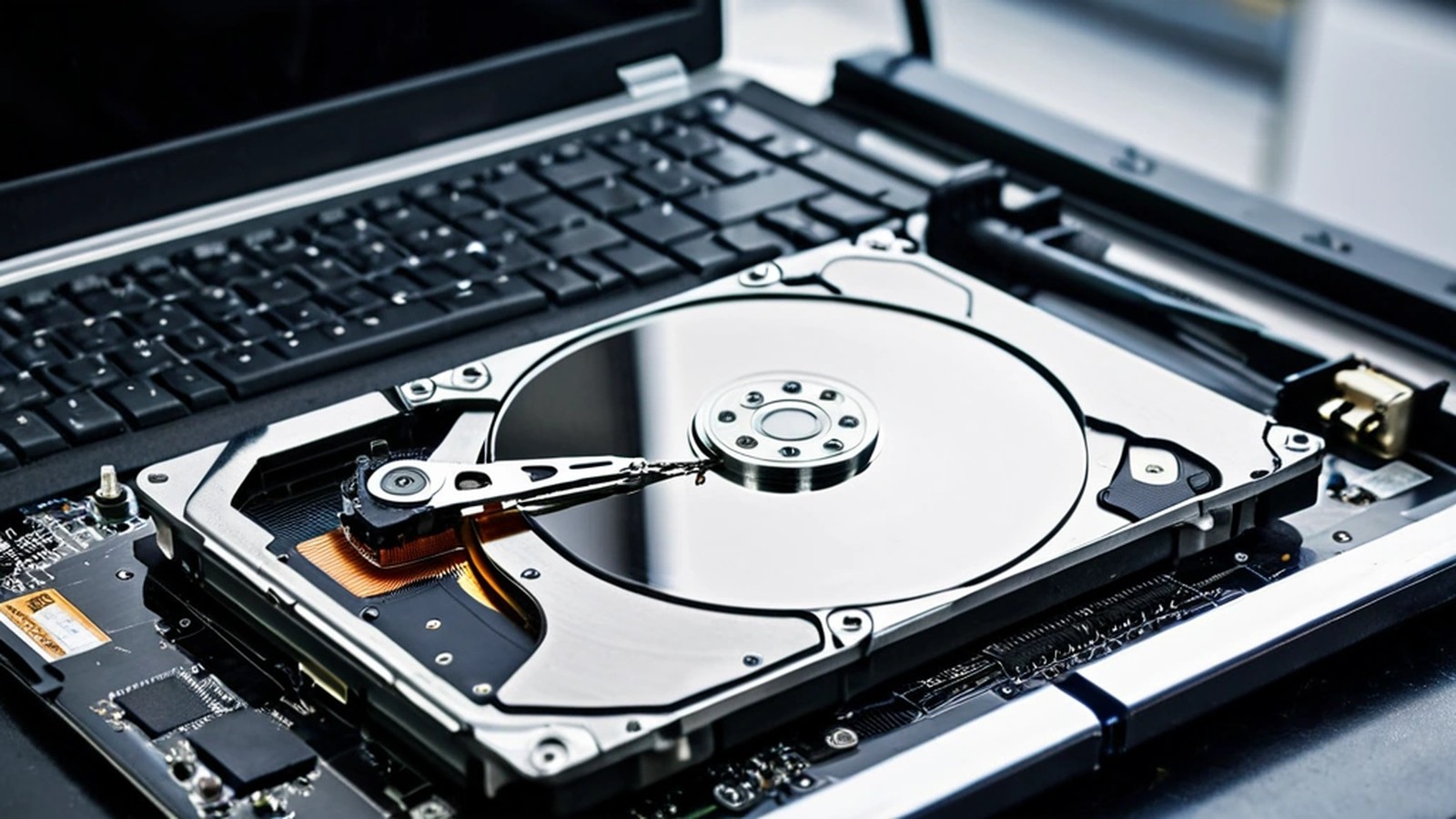
Opened laptop hard drive showing the platter and read arm on a repair bench mat

Hard Drive Clicking or Not Showing Up? What to Do Before You Lose Your Files (Murrieta and Temecula Guide)

Short answer: If your hard drive is clicking, grinding, beeping or making a new noise, turn the computer off and leave it off. Every minute a physically failing drive spins can damage it further and make your files harder to recover. If the drive is quiet but slow, freezing or giving errors, copy your most important files to another drive right away, starting with the files you can’t replace. Don’t run repair tools, don’t reinstall Windows and don’t open the drive yourself. Then get a professional diagnosis.

Family photos, business records, tax documents, school projects: for many people in Murrieta and Temecula, the only copy lives on one drive inside one computer. Here’s how to tell what’s going on and how to avoid turning a recoverable problem into a permanent loss.

Warning signs that a drive is failing

Hard drives and SSDs fail in different ways, but these are the most common signs:

  • Clicking, ticking or grinding sounds from a traditional spinning hard drive. This is often called the “click of death” and usually points to a mechanical problem.
  • Beeping or a drive that spins up and then stops over and over.
  • Very slow file opening, freezing or long hangs when you open certain folders.
  • Files or folders that suddenly won’t open, show as corrupted or disappear.
  • Error messages such as “disk read error,” “no bootable device,” or a warning to scan and fix the drive.
  • The drive doesn’t show up in File Explorer, Finder or the computer’s startup menu.
  • Frequent crashes or blue screens, especially while saving or copying files.

SSDs (solid-state drives) have no moving parts, so they don’t click. When they fail, they more often slow down, freeze, switch to read-only or disappear completely.
Worried man with his hand on his head at a home office desk in front of a computer

What to do right away

If the drive is making noise: power it off

A clicking or grinding drive is usually a physical failure. Continuing to use it, restarting it again and again, or letting a scan run for hours can make things worse. Shut the computer down, unplug it, and don’t keep trying “just one more time.”

If the drive still works but is acting up: back up first

If the computer still starts and the drive is quiet, treat that as your window to save what matters most:

  1. Plug in an external drive or USB flash drive with enough free space.
  2. Copy your most important files first: photos, documents, business files, anything you can’t download again.
  3. Copy in small batches. If one folder freezes, skip it and move on to the next.
  4. Don’t install new software onto the failing drive. Installing programs writes new data that could overwrite what you’re trying to save.

If you already use a backup service or a backup drive, check that your latest backup actually has your recent files. Our guide to backing up your computer walks through simple options for the future.

If you deleted files by accident

Stop using the computer or drive as much as possible. Deleted files often still exist on a traditional hard drive until something new is written over them. Check the Recycle Bin or Trash first, and check any cloud service you use (such as OneDrive, iCloud or Google Drive), which may keep deleted files for a period of time. On many SSDs, deleted data can be cleared quickly, so act fast.

What not to do

Online advice can make a bad situation worse. Avoid these:

  • Don’t open the drive. Opening a hard drive outside a clean-room environment exposes the platters to dust, which can make recovery much harder.
  • Don’t freeze, tap or shake the drive. These old tricks can cause more damage.
  • Don’t run disk-repair or “fix errors” tools on a drive with important data. Tools like CHKDSK are designed to repair the file system, not to save your files, and running them on a failing drive can stress it further.
  • Don’t reinstall or reset Windows or macOS. A reset or reinstall writes new data over the drive.
  • Don’t keep powering a clicking drive on and off to see if it comes back.

Is it the drive, or something else?

Not every “missing drive” is a dead drive. Sometimes the problem is a loose cable inside a desktop, a failed USB enclosure on an external drive, a power issue or a software problem. A few safe checks:

  • External drive: try a different cable and a different USB port, and plug it straight into the computer rather than a hub.
  • Desktop: if you’re comfortable, power down and make sure the drive cables are firmly seated. If not, leave it for a technician.
  • Laptop that won’t start at all: the drive may be fine. See our laptop won’t turn on guide for other causes.

If you’re unsure, it’s safer to stop and get it checked than to keep experimenting on the only copy of your files.
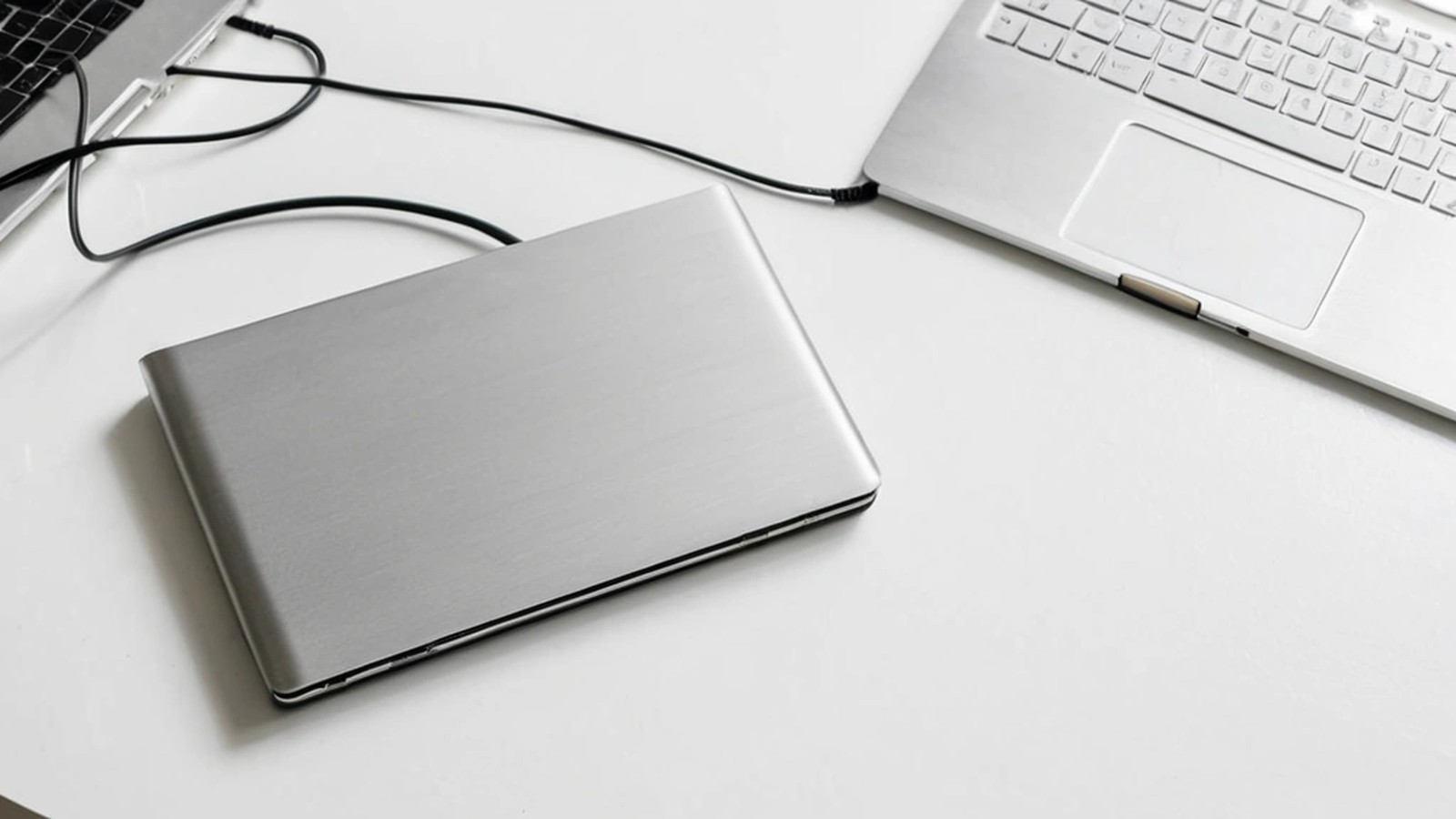
Slim external backup drive connected by cable to a laptop on a white desk

What a professional diagnosis looks like

When a computer comes in with a suspected drive failure, the goal is to protect the data first and repair the computer second. That usually means:

  • Checking the drive’s health and confirming whether the problem is the drive, the cable, the enclosure or the computer.
  • Copying data off a weak drive carefully before doing anything that writes to it.
  • Being honest about what’s possible. Some failures, especially severe mechanical damage, need a specialized data recovery lab with clean-room equipment. If that’s the case, we’ll tell you up front instead of making it worse.
  • Replacing the drive and getting you back to work, often with a faster SSD. Our SSD upgrade guide explains why that upgrade is worth it.

How to avoid this next time

  • Use the 3-2-1 idea: three copies of important files, on two different types of storage, with one copy off-site or in the cloud.
  • Test your backup once in a while by restoring a file.
  • Replace aging drives before they fail, especially in older computers that are slowing down.
  • Use a battery backup (UPS) on desktops to protect against power cuts and surges.
  • For businesses: automated, monitored backups are part of managed IT services, so you find out about a problem before it becomes a crisis.

Frequently asked questions

Can files be recovered from a clicking hard drive? Often, but it depends on the type and extent of the damage. The best thing you can do is stop using the drive right away. The less it runs, the better the odds.

Is data recovery the same as a computer repair? No. A repair fixes the computer. Data recovery focuses on getting your files back, sometimes from a drive that will never work normally again.

Can I just put my old drive in a new computer? Sometimes, if the drive is healthy. If it’s failing, moving it around and powering it in a new machine adds more stress. Get it checked first.

Do SSDs fail too? Yes. They’re faster and have no moving parts, but they can still fail without warning, which is why backups matter on every computer.

Worried about a failing drive in Murrieta or Temecula?

A. Computer Doctor has helped homes and businesses in Murrieta, Temecula and surrounding cities since 2006. It was founded by Cesar Ramirez, a computer engineer with a B.S. from Cal Poly San Luis Obispo. If your drive is clicking, missing or acting strangely, turn it off and reach out. We’ll diagnose it carefully, protect your files first and give you honest options. Learn more about our computer and laptop repair services.

Call 951-595-7758, email [email protected], or submit a trouble ticket to get started.