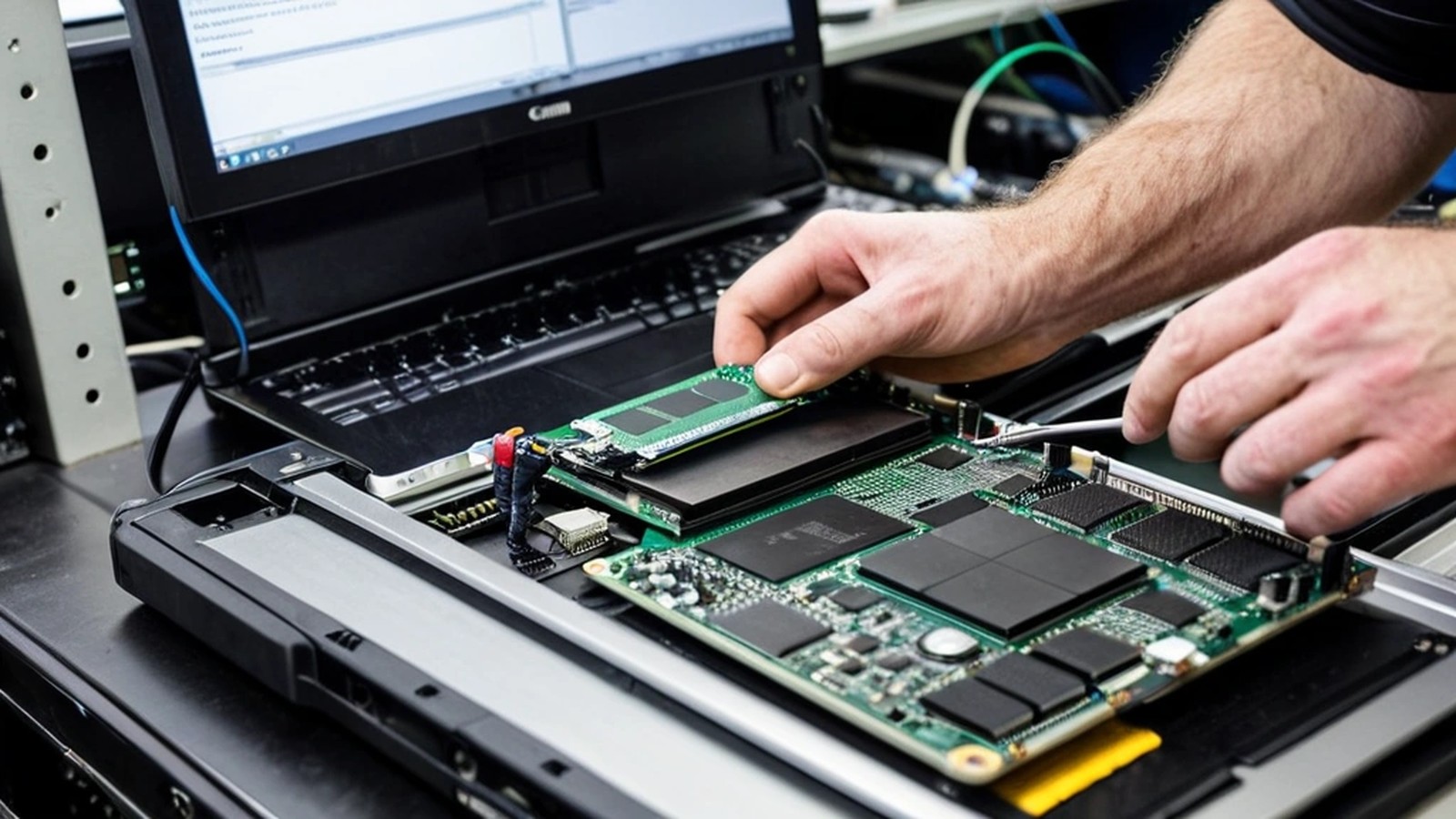
Short answer: Yes—an SSD (solid-state drive) upgrade is often the single best fix when a PC or laptop still boots but feels painfully slow, especially if it’s still using a spinning hard drive. It speeds up startup, opening programs and copying files. It will not fix a failing motherboard, a cracked screen, severe malware, or a computer that can’t run a supported operating system. Back up first, then upgrade—or let A. Computer Doctor install it for you in Murrieta and Temecula.
If your computer takes forever to start, freezes when you open a browser, or spins loudly while you wait, the storage drive is a prime suspect. Many machines sold with mechanical hard drives (HDDs) still run well after an SSD swap. Here’s how to know if that upgrade is worth it for your situation.
A traditional hard drive uses a spinning platter. An SSD has no moving parts and reads and writes much faster. After a successful upgrade and clean setup, people usually notice:
Everyday office work, schoolwork and browsing feel snappier. Heavy gaming or video work still depends on CPU, GPU and RAM.
Be realistic about the limits:
Clues that you’re on a spinning drive:
On Windows, open Task Manager → Performance → Disk and note the drive model. Labels with HDD usually mean a spinning drive; SSD, NVMe or M.2 usually mean you already have solid-state storage. If you’re already on a healthy SSD and still slow, look at RAM, malware or heat issues instead.
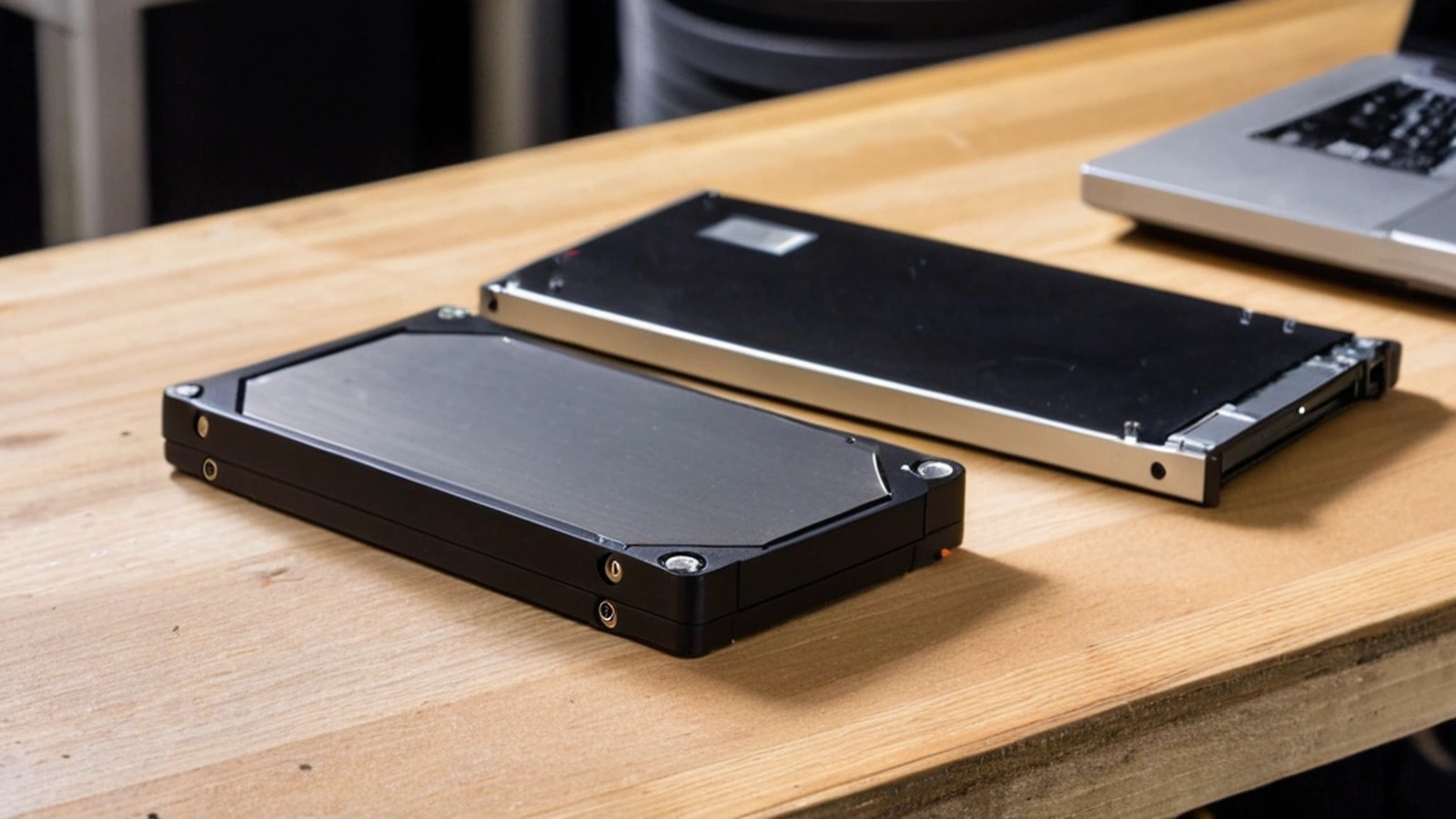
You don’t need every acronym, but these show up on quotes:
Buying the wrong form factor is a common DIY mistake. We check the bay or slot before ordering. A. Computer Doctor also recommends SSDs through our parts shop for Amazon delivery or local installation.
An SSD upgrade (drive plus labor and data move) usually costs far less than a comparable new laptop or desktop. It makes sense when:
Replace instead when the repair/upgrade stack approaches a large share of a new machine’s price, the motherboard is failing, or you need meaningfully more CPU/GPU power. We walk through that tradeoff in detail in Repair or Replace?.
DIY can work if you are comfortable opening the case, grounding yourself, cloning or clean-installing the OS, and restoring your files. Risks include choosing the wrong drive, losing data without a backup, and laptops that are difficult to open without cracking clips or voiding remaining coverage.
Have us do it when you want data moved safely, the OS set up cleanly and the old drive wiped or returned. Typical flow: verify backup, confirm drive type, install, clone or fresh-install the OS, restore files, test and optionally wipe the old drive. We serve Murrieta, Temecula and nearby cities.
Do not skip this. Copy documents, photos, email archives and browser bookmarks to an external drive or trusted cloud account, then confirm you can open a few files. If the old drive is already failing, cloning may be unreliable—backup first, then decide on clone vs fresh install. For a simple home backup plan, see How to Back Up Your Computer.
Is an SSD upgrade worth it on a 5–8 year old PC? Often yes, if the rest of the hardware is sound and the OS is still supportable. It’s one of the highest-impact upgrades for that age range.
Will I lose my files? Not if you back up first and the migration is done carefully. Always verify the backup before the old drive is wiped.
Do I need a new Windows license? Usually your existing license reactivates on the same motherboard after a drive change. Edge cases exist; we check activation as part of the job.
Can you upgrade a Mac? Some older Intel Macs allow storage upgrades; many newer Apple silicon Macs have soldered storage and can’t take a user SSD swap. We’ll tell you honestly which category yours is in.
A. Computer Doctor has helped Murrieta and Temecula homes and businesses since 2006, founded by computer engineer Cesar Ramirez. If your PC or laptop is crawling, an SSD upgrade is often the fix that feels like a new machine—without buying one yet.
Call 951-595-7758, contact us, or submit a trouble ticket today.