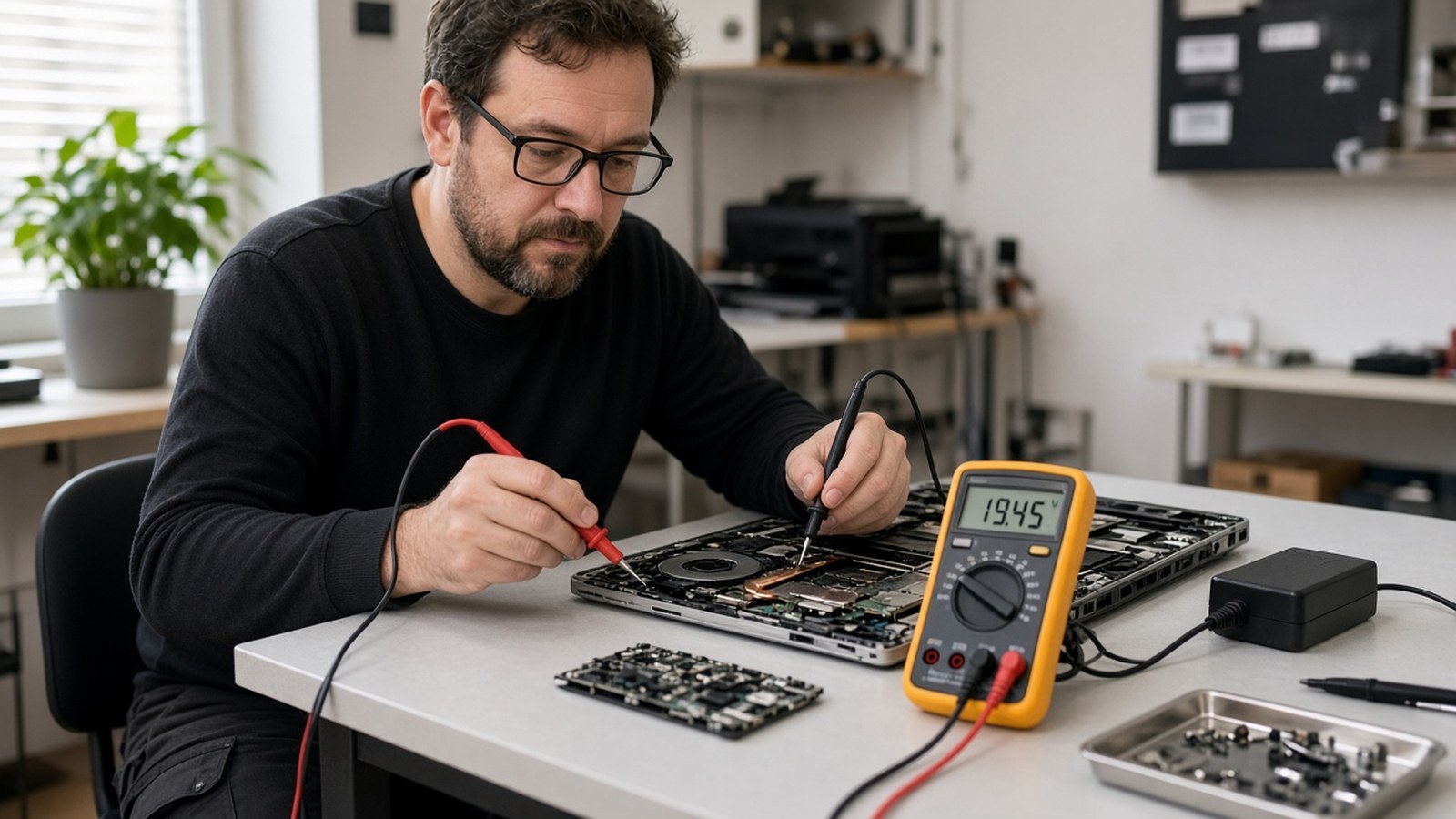
Short answer: If your laptop won’t turn on, first make sure it’s actually getting power: try a different outlet, check the charger and its light, and let it charge for at least 15–30 minutes. Then do a hard reset (unplug, hold the power button for 15–30 seconds), disconnect all accessories, and check whether the screen is just dark while the computer is running. If none of that works, or you notice swelling, burning smells or liquid damage, stop and have it looked at by a technician.
A laptop that won’t start is stressful, especially when your work files or family photos are on it. But many “dead” laptops aren’t dead at all. Here’s what to check, in order.
Be specific about what you see, because it points to different problems:
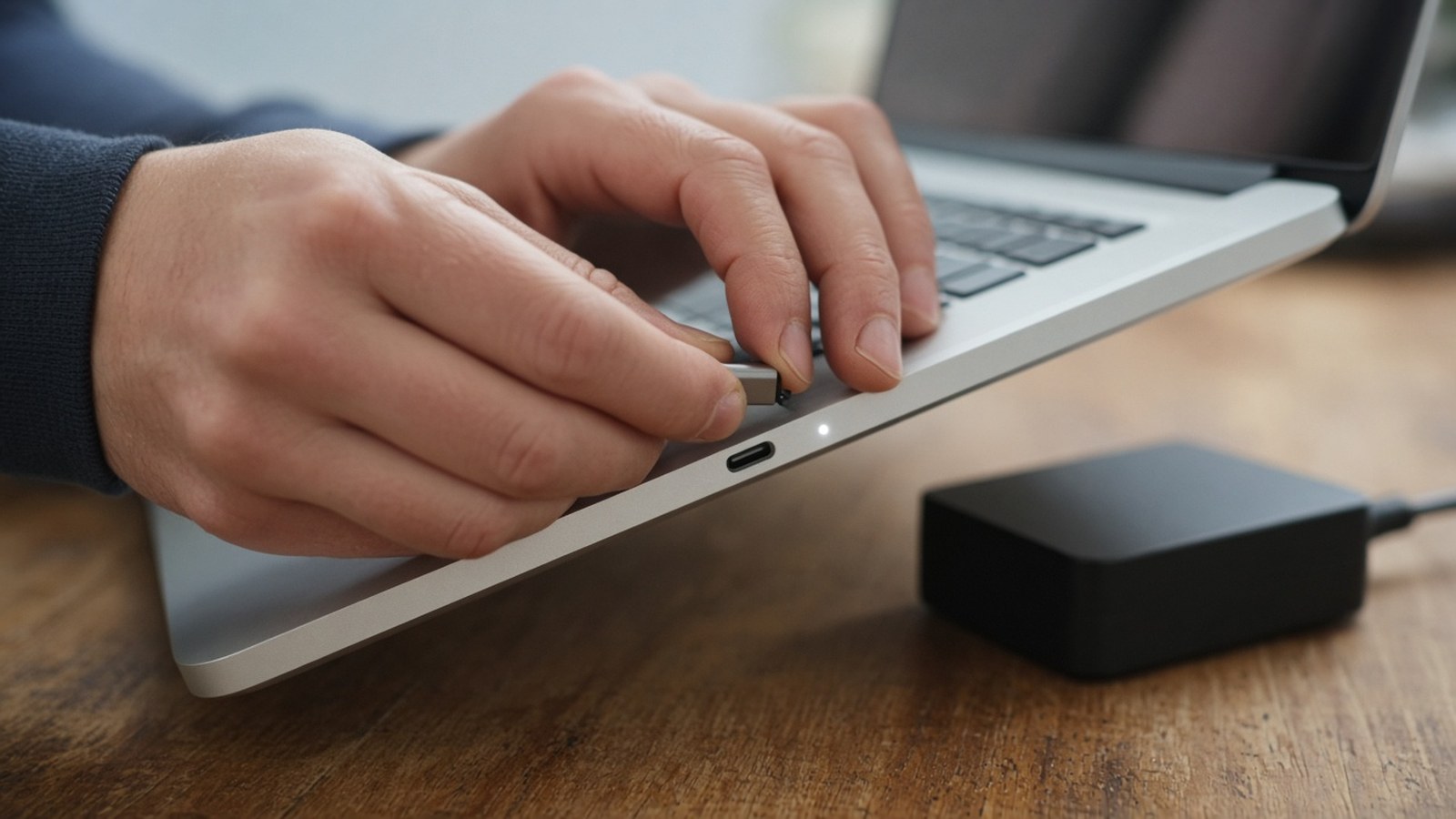
Plug something else into the same outlet to confirm it works, or try a different outlet without a power strip. Look at the charger:
If you have a compatible charger, try it. A failed charger is one of the most common, and cheapest, causes of a “dead” laptop.
A fully drained battery may need time before the laptop responds. Leave it plugged in for at least 15–30 minutes, then press the power button. Many laptops have a small charging light near the port. Note whether it turns on or blinks.
A hard reset clears leftover power that can keep a laptop stuck:
This simple step fixes a surprising number of “won’t turn on” laptops.
A faulty USB device, dock or external drive can sometimes stop a laptop from starting. Try booting with nothing but the charger connected.
Sometimes the laptop is running, but you can’t see it. Listen for the fan, watch for keyboard lights, or press Caps Lock to see if its light toggles. Then:
Laptops shut down to protect themselves from overheating. If it was hot, or was sitting on a bed, couch or blanket, let it cool on a hard surface for a while, then try again. Frequent overheating usually means dust buildup or a failing fan, and both should be cleaned or repaired.
Many laptops use beep patterns or blinking lights to report hardware problems such as memory or motherboard issues. Count the beeps or blinks, note any message on the screen, and look up your exact model on the manufacturer’s support site. Bring that information along if you need repair. It saves diagnostic time.
If you see the manufacturer’s logo but it never reaches your desktop, the hardware may be fine and the problem may be software: a failed update, corrupted system files, or a failing drive.
Important: if you hear clicking or grinding, or the computer says no drive was found, stop trying to reinstall anything. Repeated attempts can make data recovery harder.
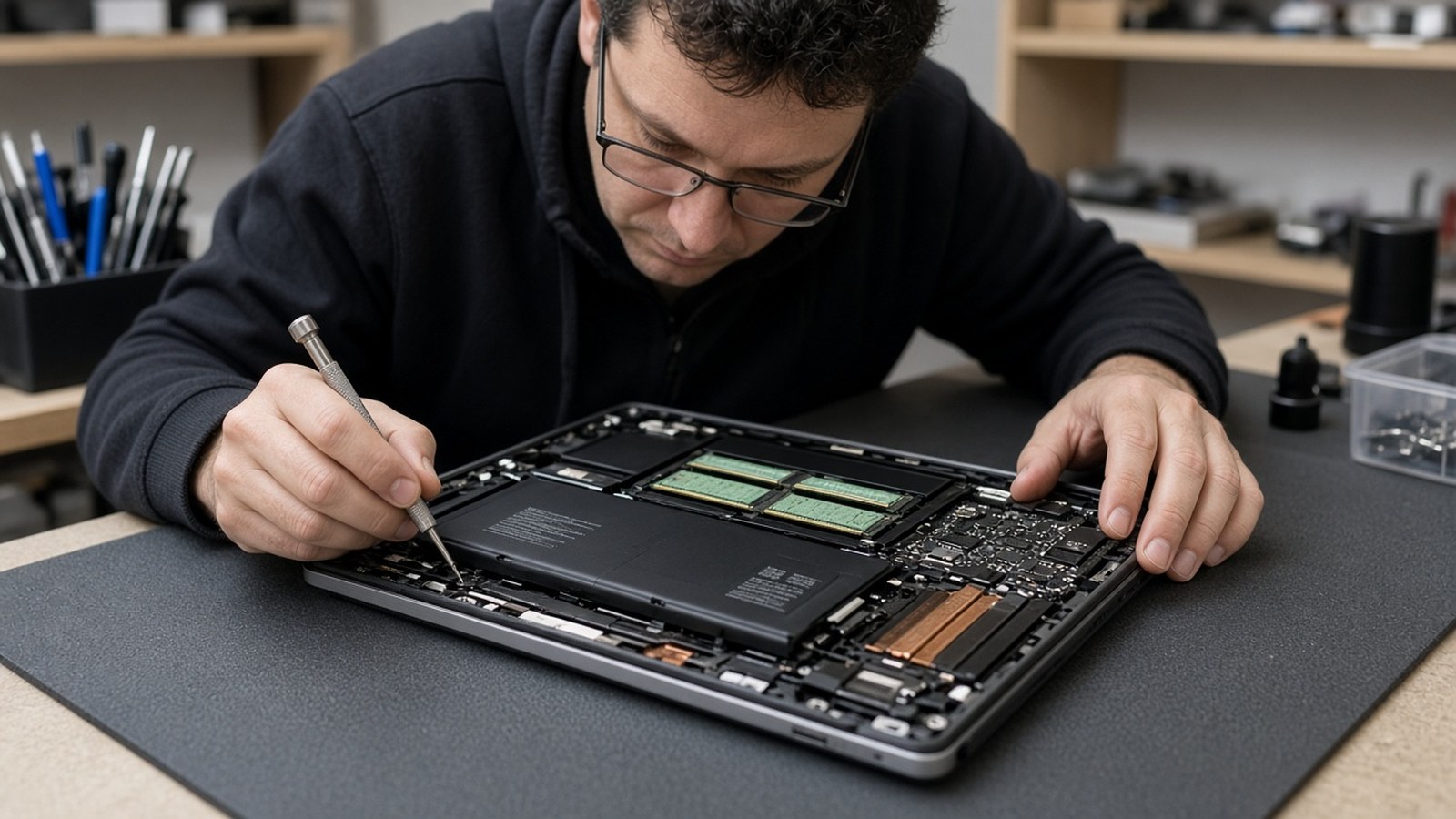
Don’t keep troubleshooting if you notice:
At A. Computer Doctor, laptop and computer repair is part of what we do every day for homes and businesses in Murrieta, Temecula, Menifee, Wildomar, Lake Elsinore and French Valley. We can diagnose power and charging problems, replace failing hardware, fix startup and operating-system issues, and recover data when it’s possible. If your laptop is older, we’ll tell you honestly whether it’s worth repairing or replacing.
Why is my laptop plugged in but not charging?
Common causes are a failed charger, a damaged cable or charging port, or a worn-out battery. Try a known-good charger first. If that doesn’t help, the port or battery may need repair.
Can a dead laptop battery stop it from turning on even when plugged in?
Yes, on some models. Let it charge for a while and try a hard reset. If it still won’t start, have the battery and charging circuit checked.
Can you recover my files if my laptop won’t turn on?
Often, yes. In many cases the drive is fine even when the laptop isn’t, and the files can be copied off. It depends on what failed, so avoid repeated repair attempts that could damage the drive.
Is it worth repairing an old laptop?
It depends on the age, the problem and the cost of the part. We’ll explain your options so you can decide.
Founded in 2006 by Cesar Ramirez, a computer engineer with a B.S. from Cal Poly San Luis Obispo, A. Computer Doctor is your local IT team for Murrieta, Temecula and surrounding cities. If your laptop still won’t turn on, we’ll find out why.
Call 951-595-7758, contact us, or submit a trouble ticket today.